

Technologist Mag
  • Home
  • Tech News
  • AI
  • Apps
  • Gadgets
  • Gaming
  • Guides
  • Laptops
  • Mobiles
  • Wearables
  • More
    • Web Stories
    • Trending
    • Press Release

Subscribe to Updates

Get the latest tech news and updates directly to your inbox.

What's On
Could Your Next Mini PC Double as an AI Workstation?

Could Your Next Mini PC Double as an AI Workstation?

19 November 2026
Grand Theft Auto VI’s Auto Drive Is A Beautiful And Free Version Of Hands-Free Travel

Grand Theft Auto VI’s Auto Drive Is A Beautiful And Free Version Of Hands-Free Travel

19 November 2026
The Jensen Huang Blast Radius Has Hit His Favorite Restaurants

The Jensen Huang Blast Radius Has Hit His Favorite Restaurants

19 November 2026
Latest leak showcases Motorola Razr Flex in two unique colorways

Latest leak showcases Motorola Razr Flex in two unique colorways

19 November 2026
Dudes Online Are So Mad That ‘Grand Theft Auto 6’ Makes Them Respect Women

Dudes Online Are So Mad That ‘Grand Theft Auto 6’ Makes Them Respect Women

19 November 2026
Facebook X (Twitter) Instagram
Technologist Mag
SUBSCRIBE
  • Home
  • Tech News
  • AI
  • Apps
  • Gadgets
  • Gaming
  • Guides
  • Laptops
  • Mobiles
  • Wearables
  • More
    • Web Stories
    • Trending
    • Press Release
Technologist Mag
Home » Windows 11 finally lets you customize the right-click menu and ditch options you never use
Tech News

Windows 11 finally lets you customize the right-click menu and ditch options you never use

By technologistmag.com29 October 20262 Mins Read
Windows 11 finally lets you customize the right-click menu and ditch options you never use
Share
Facebook Twitter Reddit Telegram Pinterest Email

Windows 11 is finally giving you more control over the right-click menu, which can feel cluttered with options you rarely touch. Microsoft is rolling out a redesigned context menu with better performance and customization options. You can choose which commands appear when you right-click (via Windows Latest).

What can you change in Windows 11’s right-click menu?

This update rolls out gradually through an optional Windows 11 update for versions 25H2 and 26H2. Once it kicks in, you will spot a new “Customize menu” option sitting near the bottom of the right-click menu, which opens a settings page where you can choose what stays visible.

You can toggle commonly used commands like Send To, Print, Create Shortcut, Copy As Path, and Rotate Image on or off, depending on which options you need. You can also display Cut, Copy, Paste, Rename, Delete, and Share as text instead of icons. This makes the menu easier to navigate while giving you a more familiar Windows 10-style layout.

You can even move Properties down to the bottom of the menu if that layout feels more natural to you. On top of that, Microsoft also lets you manage how many third-party app extensions show up. So cloud storage tools, compression apps, or antivirus programs cannot clutter the menu unless you want them there.

Windows-11-new-context-menu

How to enable Windows 11’s new right-click menu?

To get started, head to Settings > Windows Update > Advanced Options > Optional Updates > install the update labeled KB5127936 and restart your PC after installation.

Once the feature reaches your computer, open File Explorer and right-click a file. Select Customize menu at the bottom, then enable or disable the commands you want. You can also find these settings under Settings > Personalization > Context Menu.

Windows-11-personalize-context-menu

Microsoft says the redesigned menu also opens noticeably quicker. However, the rollout is gradual, so installing the update doesn’t guarantee you will see the new option right away. In that case, you can wait for the broader release expected with November’s update.

RELATED COVERAGE:

Share. Facebook Twitter Pinterest LinkedIn Telegram Reddit Email
Previous ArticleI Did Push-Ups With Snap’s Chunky AR Glasses
Next Article Go Minimal—the Ridge Wallet is 20 Percent Off Right Now

Related Articles

Could Your Next Mini PC Double as an AI Workstation?

Could Your Next Mini PC Double as an AI Workstation?

19 November 2026
The Jensen Huang Blast Radius Has Hit His Favorite Restaurants

The Jensen Huang Blast Radius Has Hit His Favorite Restaurants

19 November 2026
Latest leak showcases Motorola Razr Flex in two unique colorways

Latest leak showcases Motorola Razr Flex in two unique colorways

19 November 2026
Dudes Online Are So Mad That ‘Grand Theft Auto 6’ Makes Them Respect Women

Dudes Online Are So Mad That ‘Grand Theft Auto 6’ Makes Them Respect Women

19 November 2026
This Auto-Incline Walking Pad Is Under 0 Right Now

This Auto-Incline Walking Pad Is Under $300 Right Now

19 November 2026
What’s With All These Outages?

What’s With All These Outages?

19 November 2026
Stay In Touch
  • Facebook
  • Twitter
  • Pinterest
  • Instagram
  • YouTube
  • Vimeo

Subscribe to Updates

Get the latest tech news and updates directly to your inbox.

Don't Miss
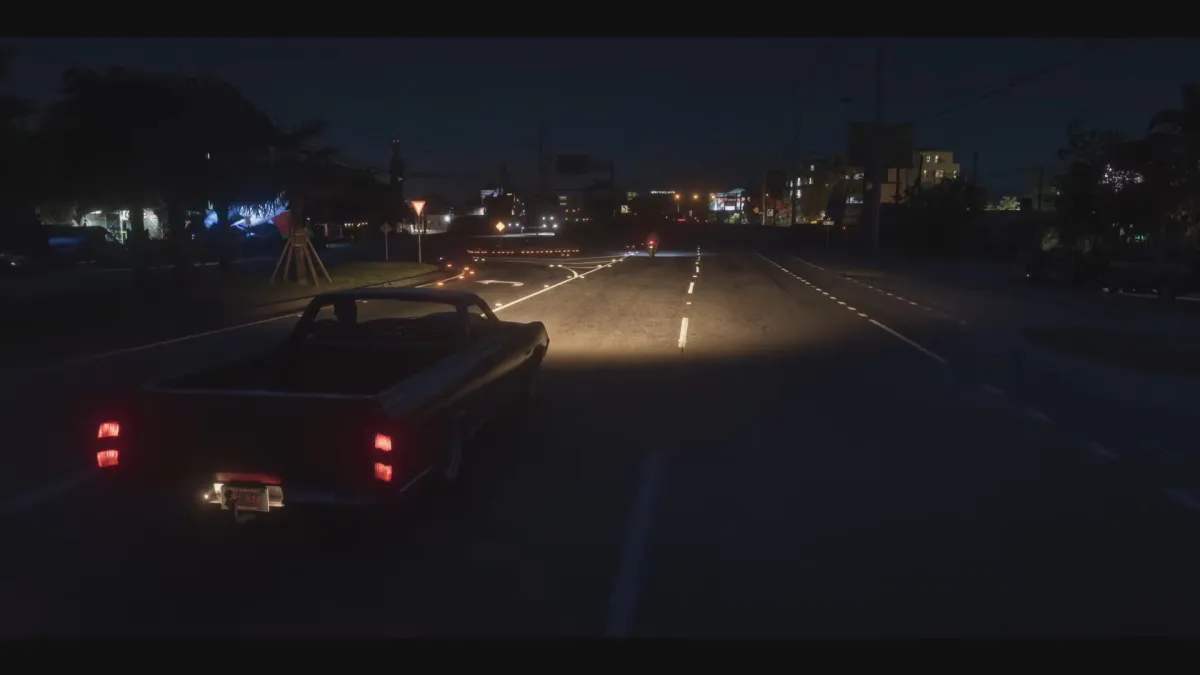
Grand Theft Auto VI’s Auto Drive Is A Beautiful And Free Version Of Hands-Free Travel

Grand Theft Auto VI’s Auto Drive Is A Beautiful And Free Version Of Hands-Free Travel

By technologistmag.com19 November 2026

Grand Theft Auto VI is a game where you spend a lot of time behind…

The Jensen Huang Blast Radius Has Hit His Favorite Restaurants

The Jensen Huang Blast Radius Has Hit His Favorite Restaurants

19 November 2026
Latest leak showcases Motorola Razr Flex in two unique colorways

Latest leak showcases Motorola Razr Flex in two unique colorways

19 November 2026
Dudes Online Are So Mad That ‘Grand Theft Auto 6’ Makes Them Respect Women

Dudes Online Are So Mad That ‘Grand Theft Auto 6’ Makes Them Respect Women

19 November 2026
This Auto-Incline Walking Pad Is Under 0 Right Now

This Auto-Incline Walking Pad Is Under $300 Right Now

19 November 2026
Technologist Mag
Facebook X (Twitter) Instagram Pinterest
  • Privacy
  • Terms
  • Advertise
  • Contact
© 2026 Technologist Mag. All Rights Reserved.

Type above and press Enter to search. Press Esc to cancel.