







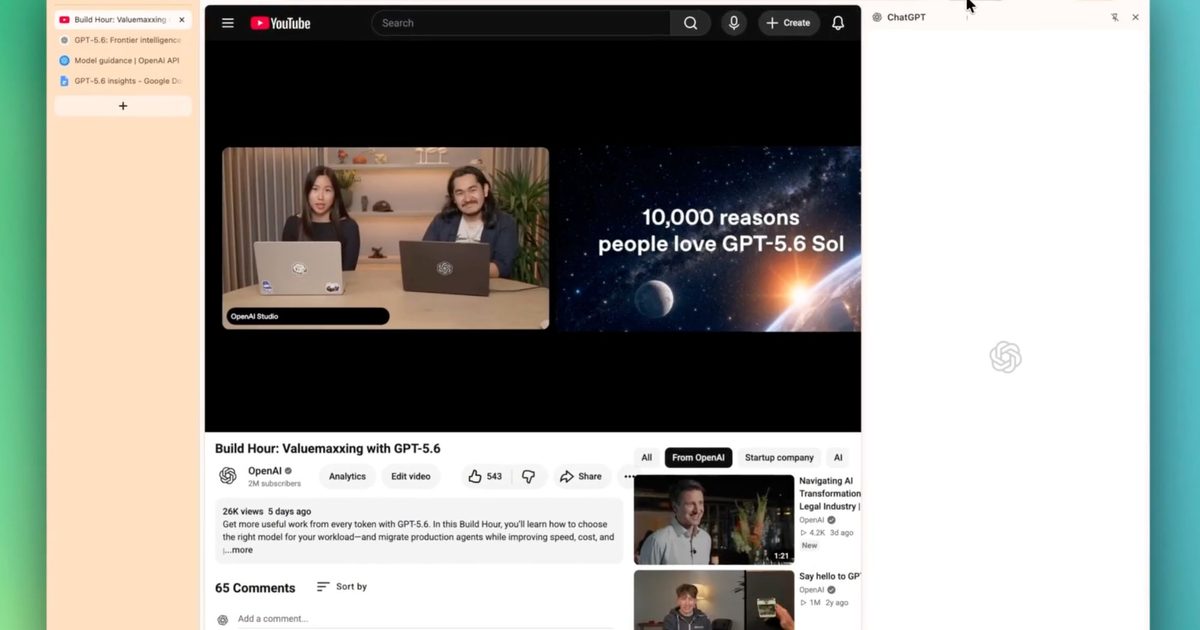
ChatGPT just got a lot better at understanding what you’re actually looking at. OpenAI has rolled out updates to its Chrome extension and desktop app that let ChatGPT read your open tabs, react to highlighted text, and answer questions about YouTube videos. The update arrived shortly after OpenAI shelved its standalone Atlas browser to shift its focus toward tools people already use.
What’s new in ChatGPT’s Chrome extension?
Inside Side Chat, you can now reference your open tabs directly, so ChatGPT already has context without you having to explain anything. Highlighting text on a page works too, letting you ask a question about that exact section instead of describing it yourself.
If you ask about any YouTube video, ChatGPT will read it directly without requiring a manual summary request. There’s also a quicker shortcut built right into your browser. You can right-click anywhere on a page, select Ask ChatGPT, and the sidebar opens automatically.

What’s new in ChatGPT’s desktop app?
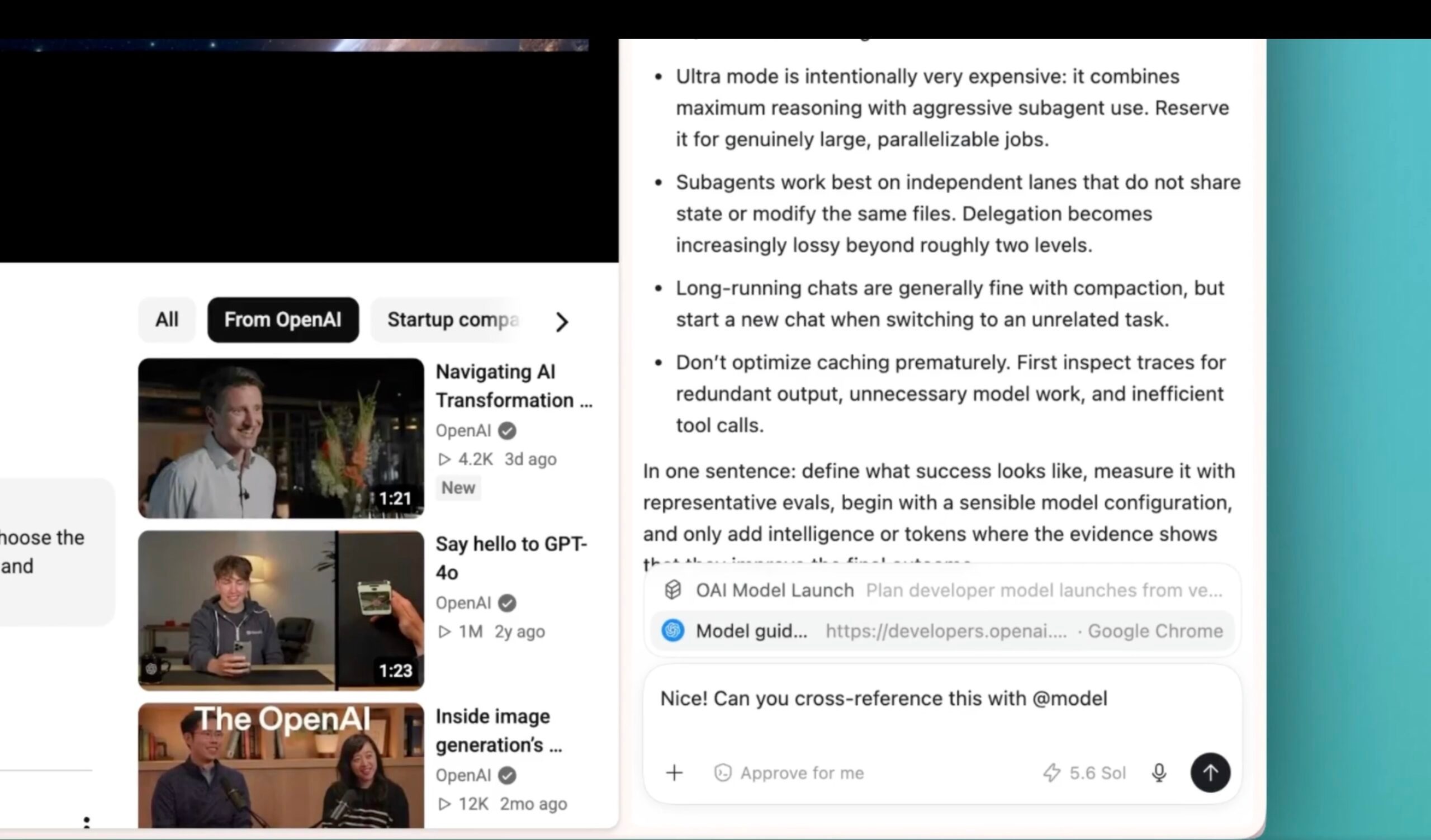
The desktop app now suggests URLs as you type, and works like a normal browser address bar. You can also dig back through your browsing history from Settings, and ChatGPT can search that history whenever a task calls for a page you visited earlier.
OpenAI also rolled out a couple of smaller updates in the latest release. A new Activity view in the sidebar shows which chats you’ve engaged with recently and which ones still need your attention.
Reviewing code across multiple repositories in one project just got simpler, and generated images now open in an expanded viewer where you can leave comments before requesting edits. If you already use ChatGPT while researching online, these updates should make that workflow feel faster.
